 Note: These statistics are also available separately for emails. To view them, simply click on the Email option in the left-hand side menu to access the batch-specific email statistics.
Understanding the Job Monitoring Dashboard: What is Printing Center and Control Center?
Printing Center:
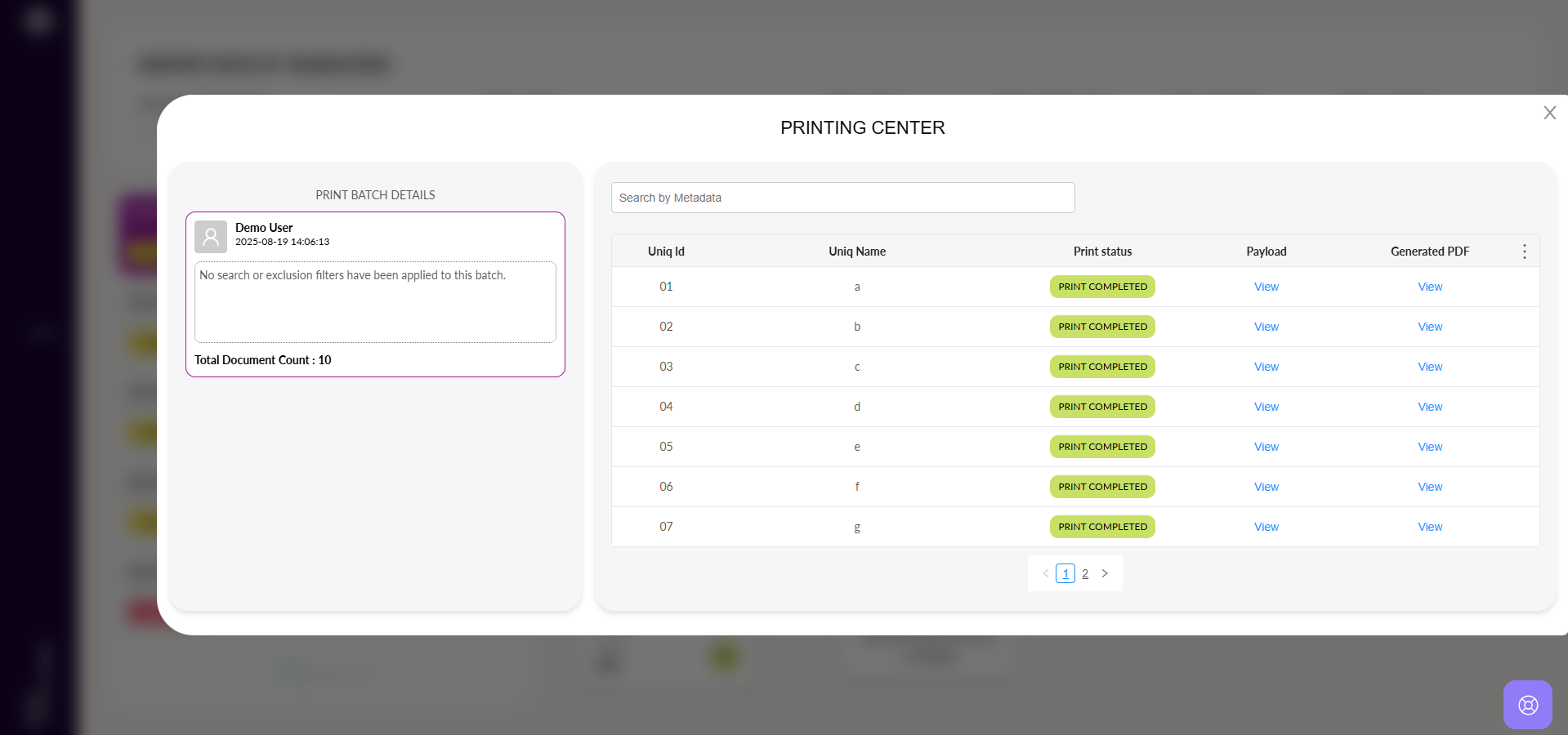
The Printing Center allows users to track and review all documents that have been successfully printed. Unlike the Printing Engine, which displays jobs queued for printing, the Printing Center focuses on completed print jobs.
Here’s what users can do in the Printing Center:
View Printed Documents – See the list of all documents that have completed printing.
View Printed Documents – See the list of all documents that have completed printing.
Preview Documents – Open and review the printed document for verification.
View Payload – Access the payload details of each printed job for reference.
Check Failure Reasons – If any document fails to print, users can view the reason for failure.
Monitor Excluded Documents – On the left-hand side "Print Batch Details" section, users can see the documents that were excluded from the print batch.
Control Center:
The Control Center provides an overall overview of a batch, giving users complete visibility into what happened within that cycle. It displays key metrics, helping users quickly understand the outcome of the batch:
Request Received Count – Total number of requests received in the batch.
Printed Count – Number of requests that were successfully printed.
Failure Count – Number of documents that failed during the print process.
Removed Records Count – Number of documents voluntarily excluded by the user from printing.
Unknown Records – Documents that may have been lost due to external issues during processing. These are tracked as Unknown Records.
In addition, users can drill down into these records using the table on the right-hand side of the Control Center. The table provides detailed information for each record, along with filtering options to help users analyze results and identify where issues may have occurred.
Note: These statistics are also available separately for emails. To view them, simply click on the Email option in the left-hand side menu to access the batch-specific email statistics.