Generating On-Demand Documents and Emails Using PDS Forms
PDS Forms enables business users to generate on-demand customer communications instantly, without waiting for batch jobs. By selecting a template, channel, and language, and entering the required values, documents and emails can be generated and delivered in real time through the Generate Form(s) option in the Transaction menu.
Follow These Steps
1. Make sure the document template or email template you want to generate is in Published status. Only templates in Published status can be generated.
2. From the Transactions menu on the left-hand side, click on the Smart Batch Studio option.
3. In the landing page of the Smart Batch Studio, click on the New Batch -> Batch Jobs Option in the Top-right corner.
4. Click on the Form Option from the 3 options (Quick, Form and Standard)
5. Then select the Channel of Communnication: Print, Email, SMS and Call
6. In the Select Template field, start typing the template name to view it in the list.
6. Select the language. All language versions of the template that are in Published status will be listed. Choose your preferred language. Click Next.
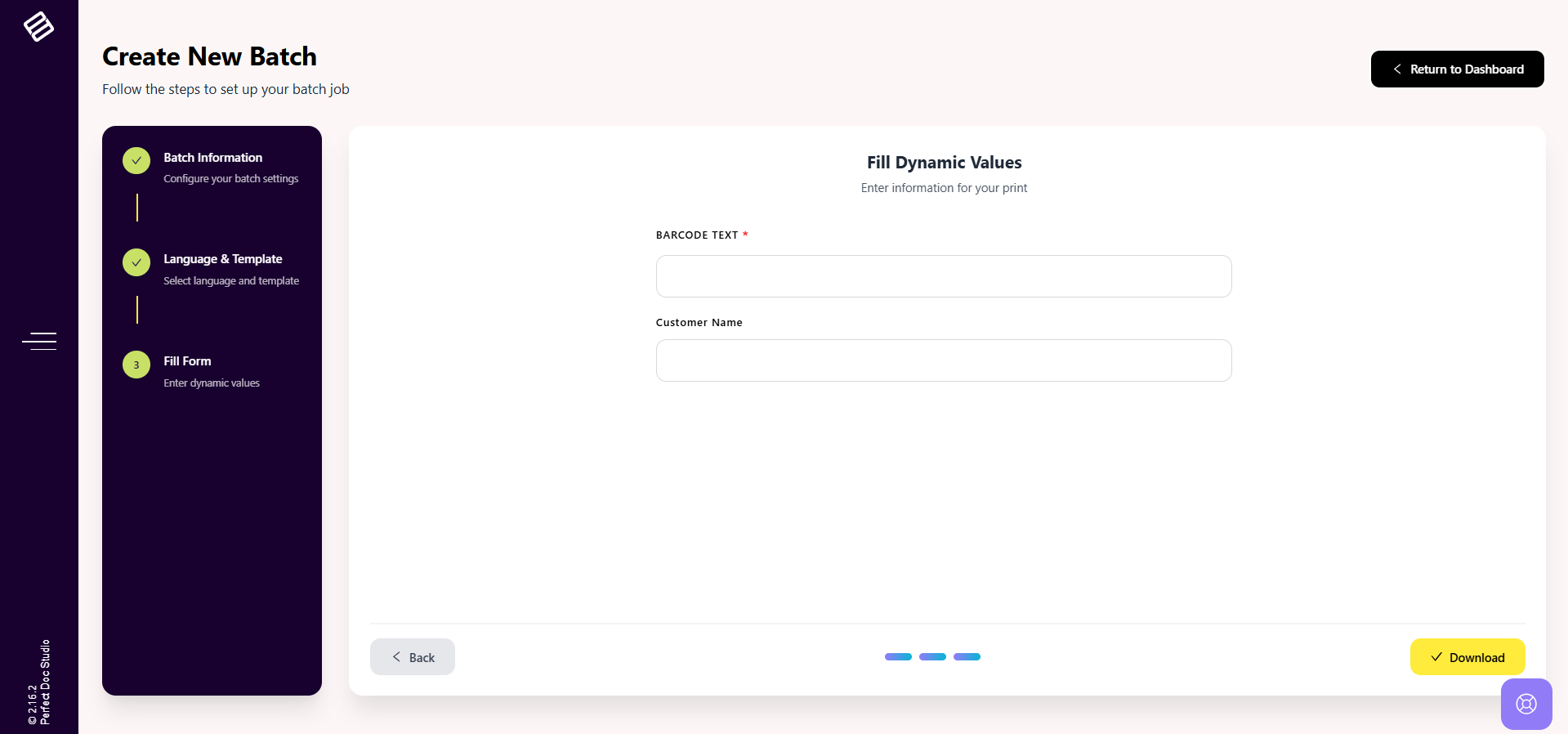
7. If the Print option is selected, the available Data Fields (Variables) configured in the selected document template will be displayed. Enter the required data in the respective fields and click Download to generate the document.
8. If the Email option is selected, the To Address and CC fields will be displayed. Enter a single recipient email address in the To Address field and one or more email addresses in the CC field, if required.
8. Click on the Download / Send Email option.
- For Print, the document will be downloaded.
- For Email, the communication will be sent instantly.
Related Articles
Generating On-Demand Documents and Emails Using PDS Forms
PDS Forms enables business users to generate on-demand customer communications instantly, without waiting for batch jobs. By selecting a template, channel, and language, and entering the required values, documents and emails can be generated and ...Using and Uploading Fonts
PerfectDoc Studio allows you to customize your documents with a variety of fonts beyond the default options. This guide will show you how to utilize both Google Fonts and upload your own fonts. Using Google Fonts Select Text: Highlight the text you ...What are Interactive Documents?
Interactive Documents enable users to customize a document template on-demand without modifying the original design. The master template remains unchanged, while users can add or adjust content through an interactive design interface before ...How to use Interactive Documents?
To make your document design interactive, please follow the steps: 1. Only specific parts of a document can be made interactive. Supported elements include Text Blocks and Creative Blocks. Elements such as the Table of Contents, Header, Footer, ...What is Best Insights in Documents?
Within the Documents section's Dashboard page, the left side displays the Consolidated stats for documents generated in the system over 7-day periods. Users have the option to choose a date range limited to the past 7 days, allowing them to access ...