How to use Interactive Documents?
To make your document design interactive, please follow the steps:
1. Only specific parts of a document can be made interactive. Supported elements include Text Blocks and Creative Blocks. Elements such as the Table of Contents, Header, Footer, Static Tables, and Dynamic Tables cannot be made interactive or inserted into an interactive document.
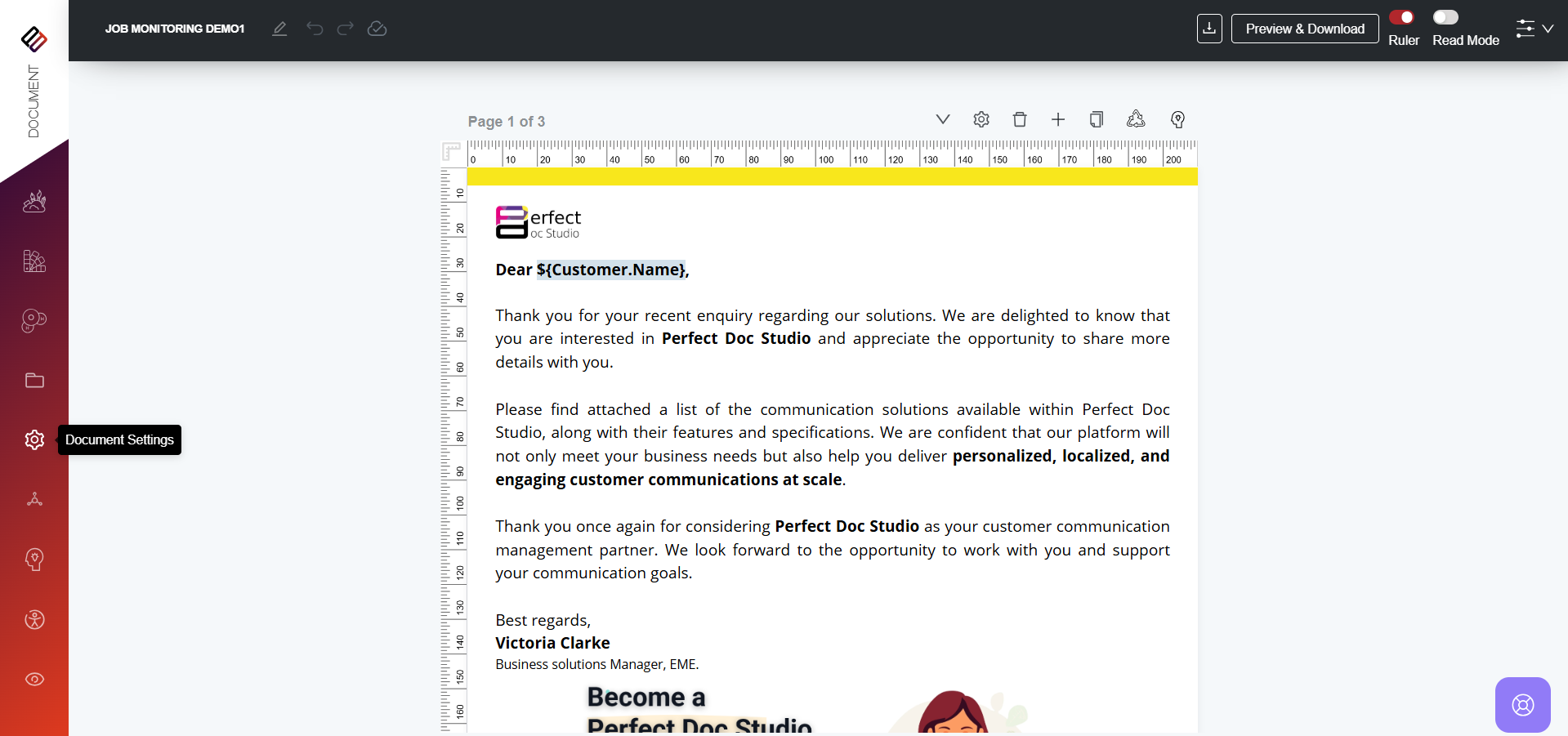
2. To make your document interactive, you need to enable the Clonable option. To do this, click on the Document Settings button in the left-hand side menu.
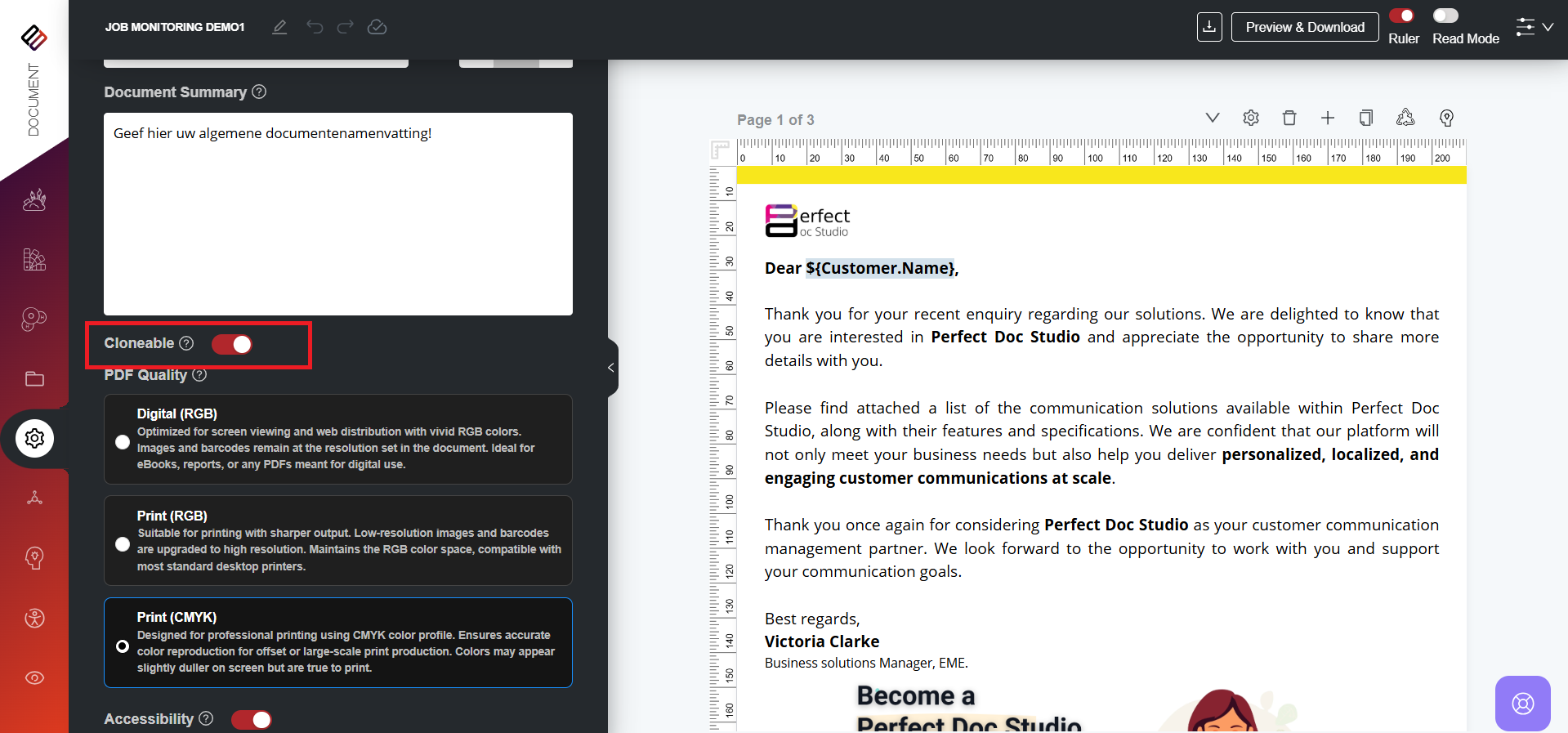
3. In the Document Settings panel, toggle on the Clonable option.
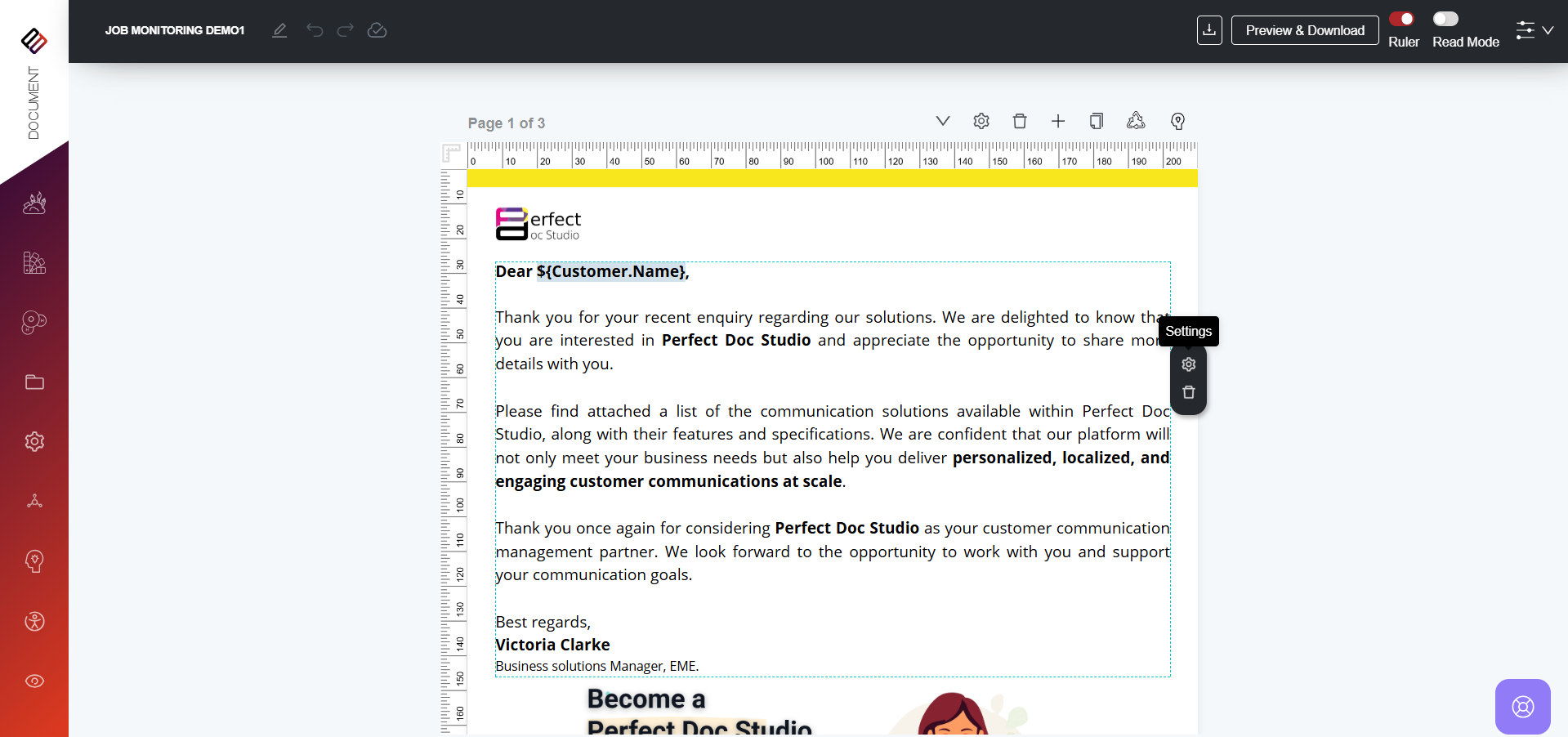
4. Once the Clonable option is enabled, select the block you want to edit and click on the Settings option.
5. In the Block Settings panel, you will see the Editable option. Toggle it on.
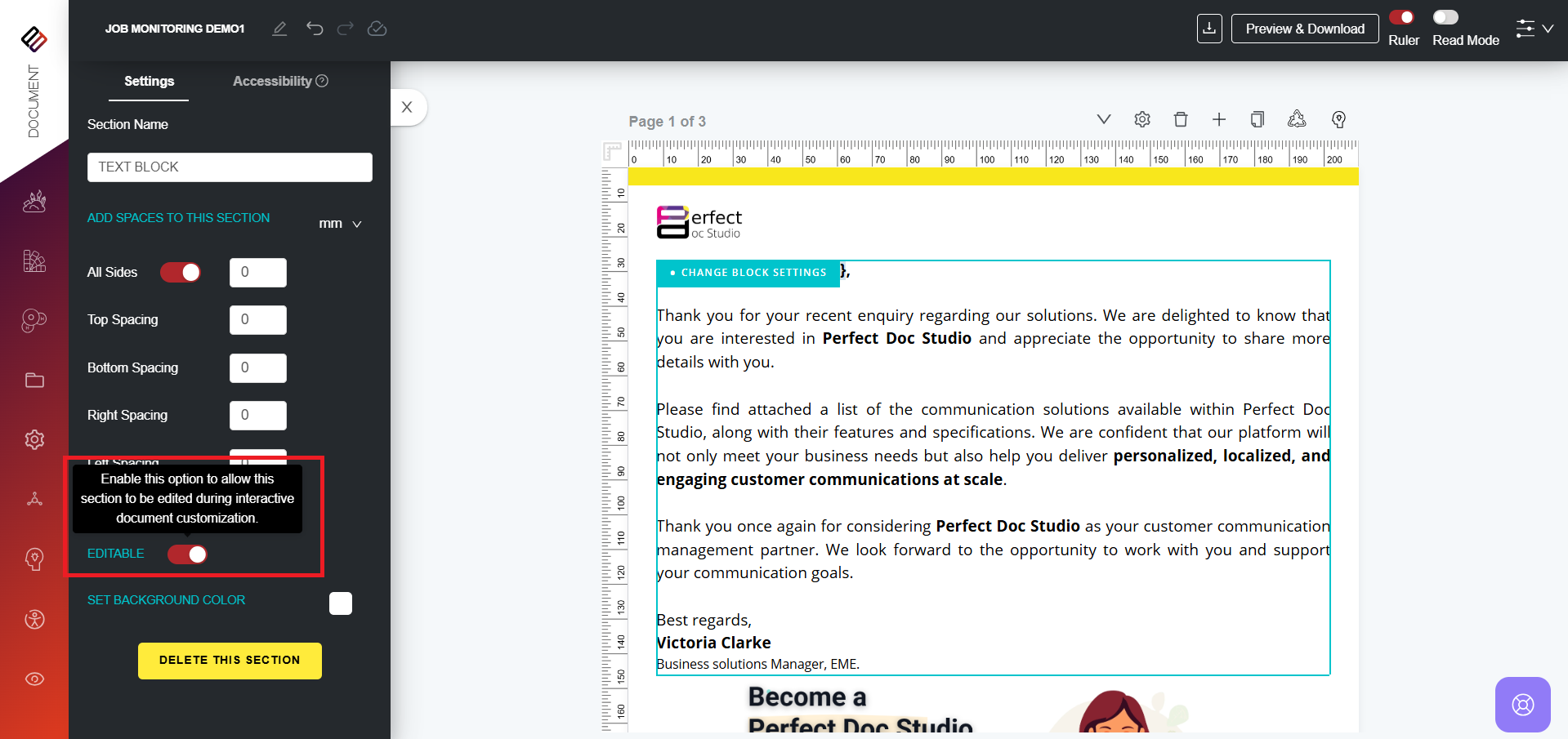
 Note: A document becomes interactive only when the Clonable option is enabled. The Editable option for individual blocks will appear in the settings section only after Clonable is toggled on. If Clonable is not enabled, blocks cannot be made interactive. Always ensure Clonable is turned on before making your document interactive.
6. You can choose which blocks should be editable. If you don’t want certain blocks to be modified, leave the Editable option toggled off. In that case, no changes can be made to those blocks in the interactive design panel.
7. When changes are required on demand, the document design can be pushed to the Interactive Documents section via an API call.
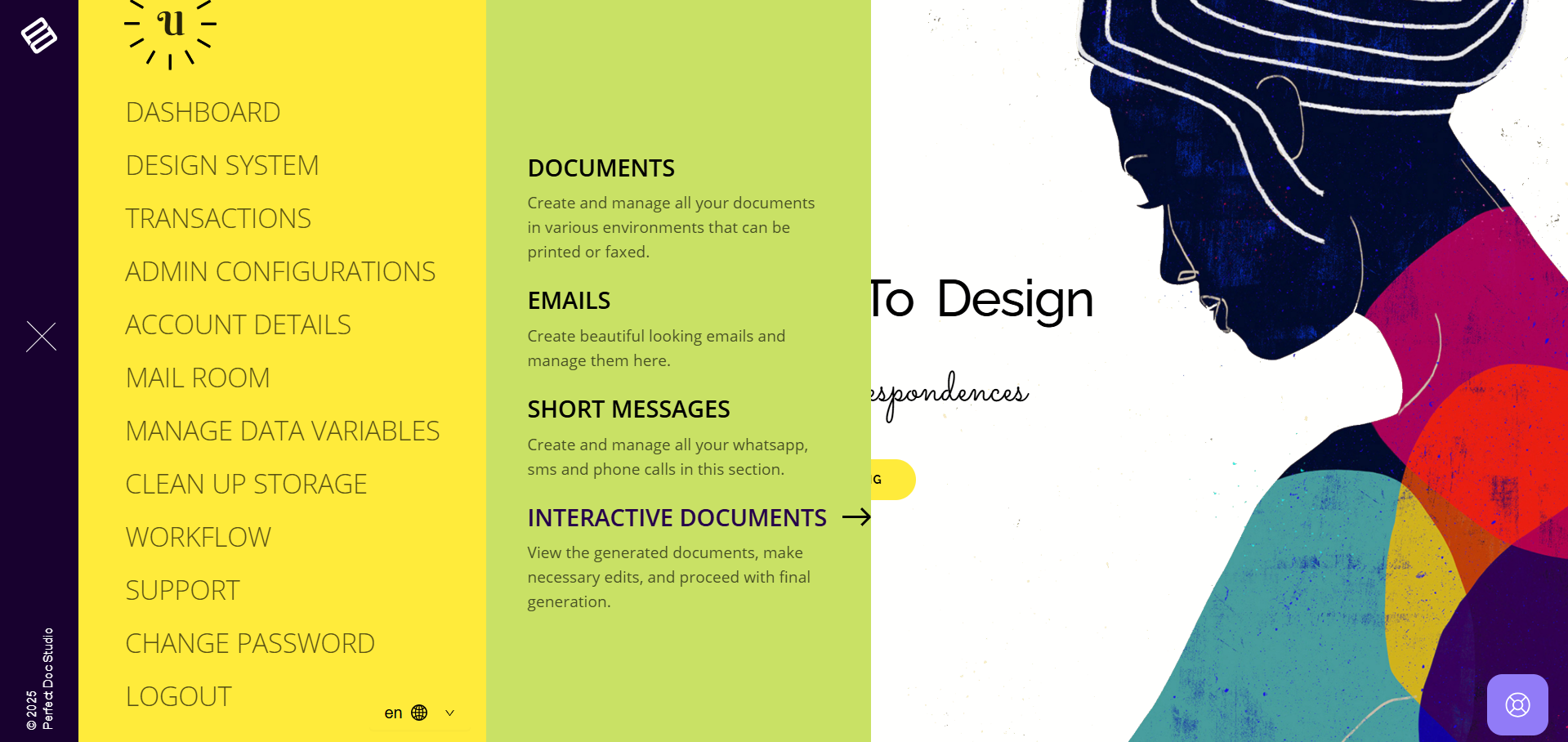
8. From the Design System menu, navigate to the Interactive Documents section to view all available interactive document templates.
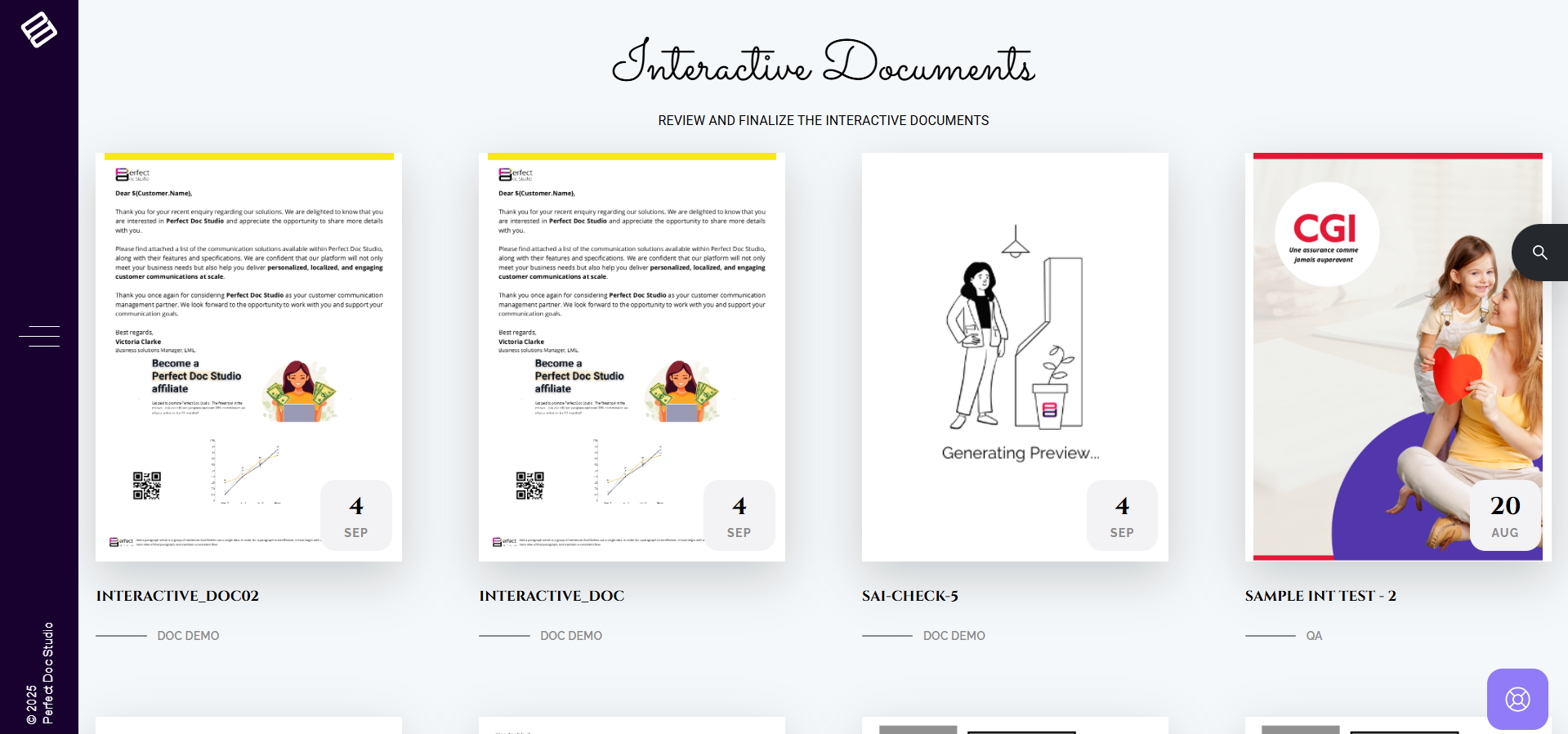
9. Select the required design document to open it in the Design Panel.
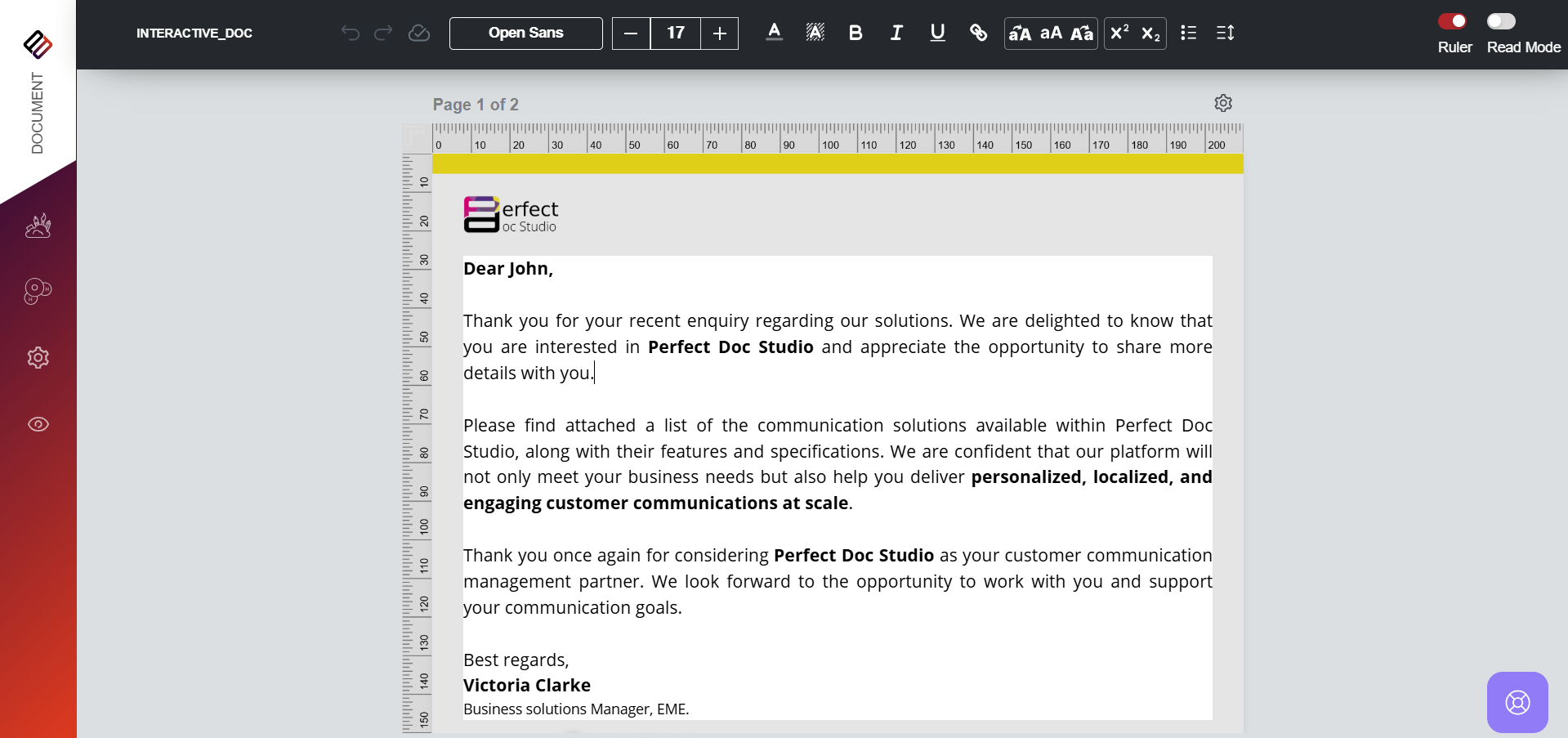
10. You can edit any block that was marked as Editable in the master design.
11. If a block was not enabled as editable in the master design, it cannot be modified here.
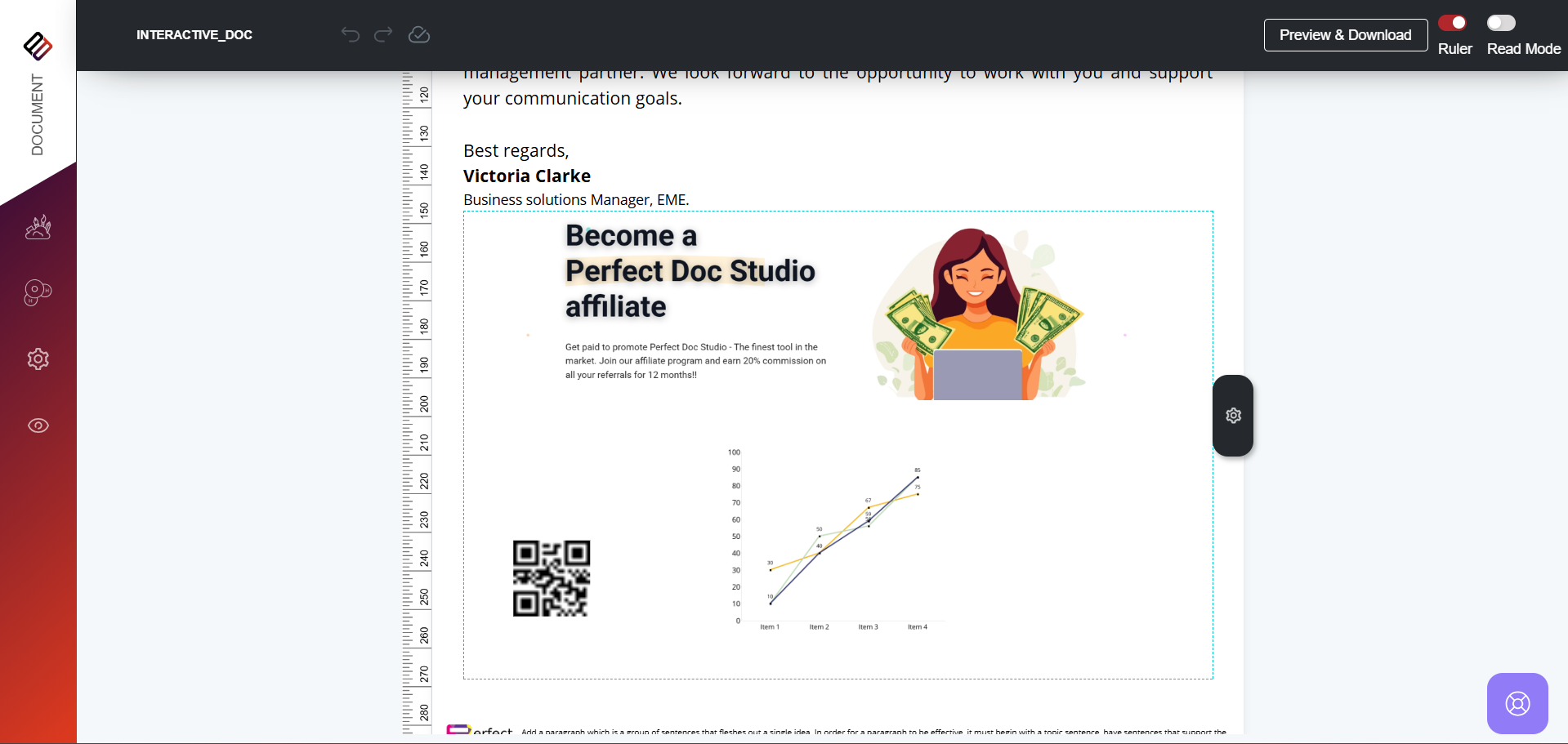
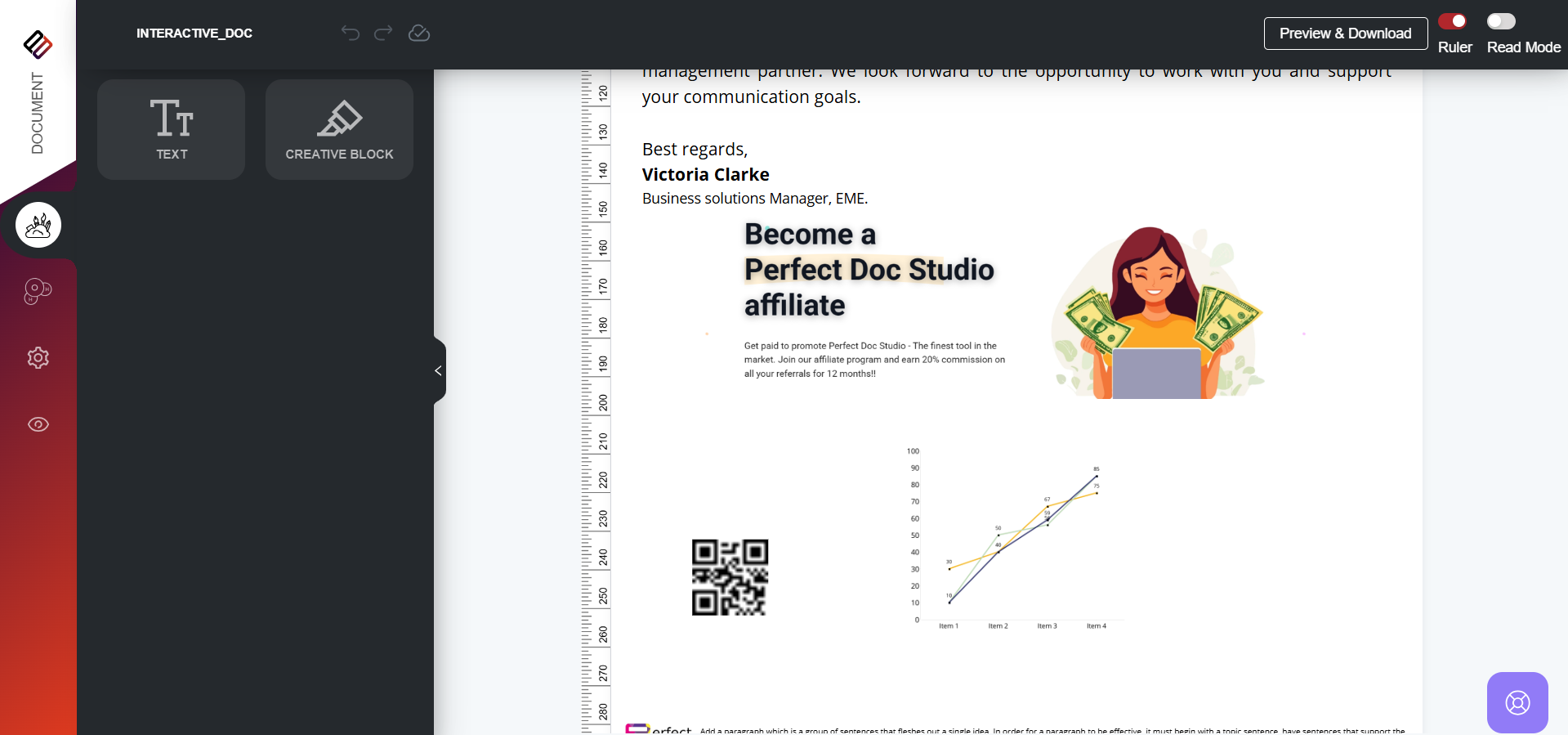
12. Additional text blocks and creative blocks can also be added from the left-hand side menu as needed.
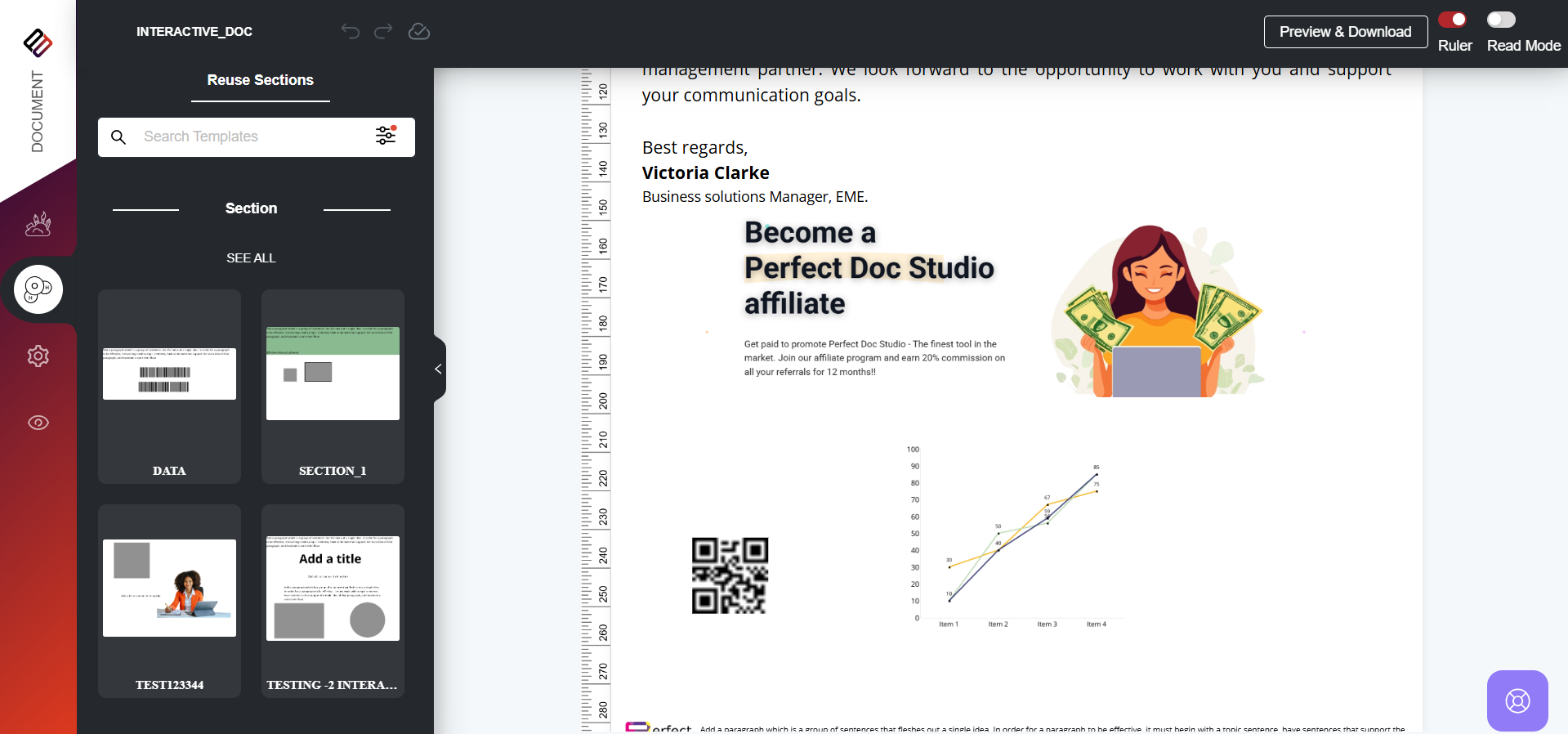
13. Users also have the option to attach Reusable Sections to the Interactive Document.
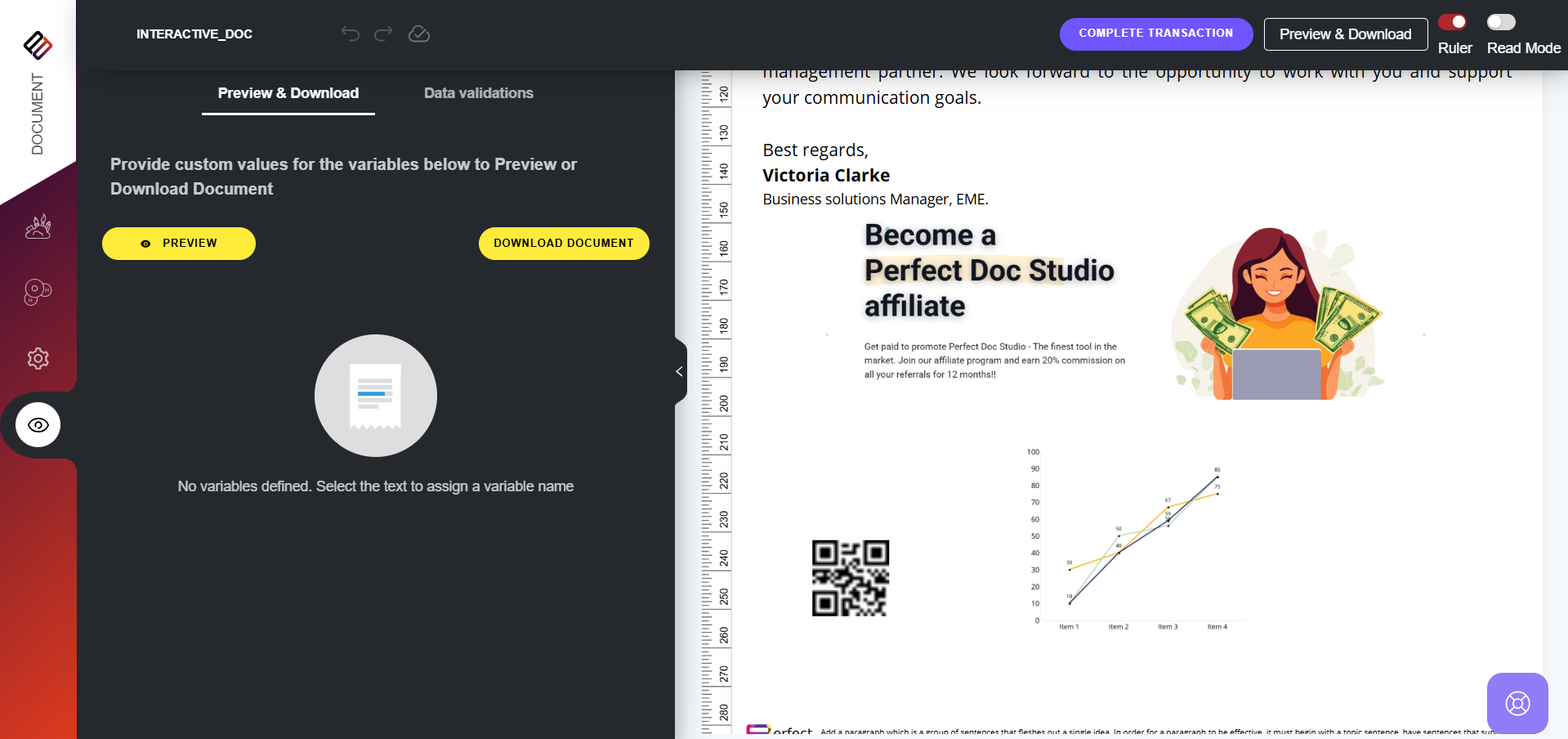
14. Once changes are complete, you can go to the Preview and Download section to download the document and send it manually to the concerned customer or recipient.
15. Alternatively, click on Complete Transaction to automatically send the updated document to the customer/recipient via the integrated system.
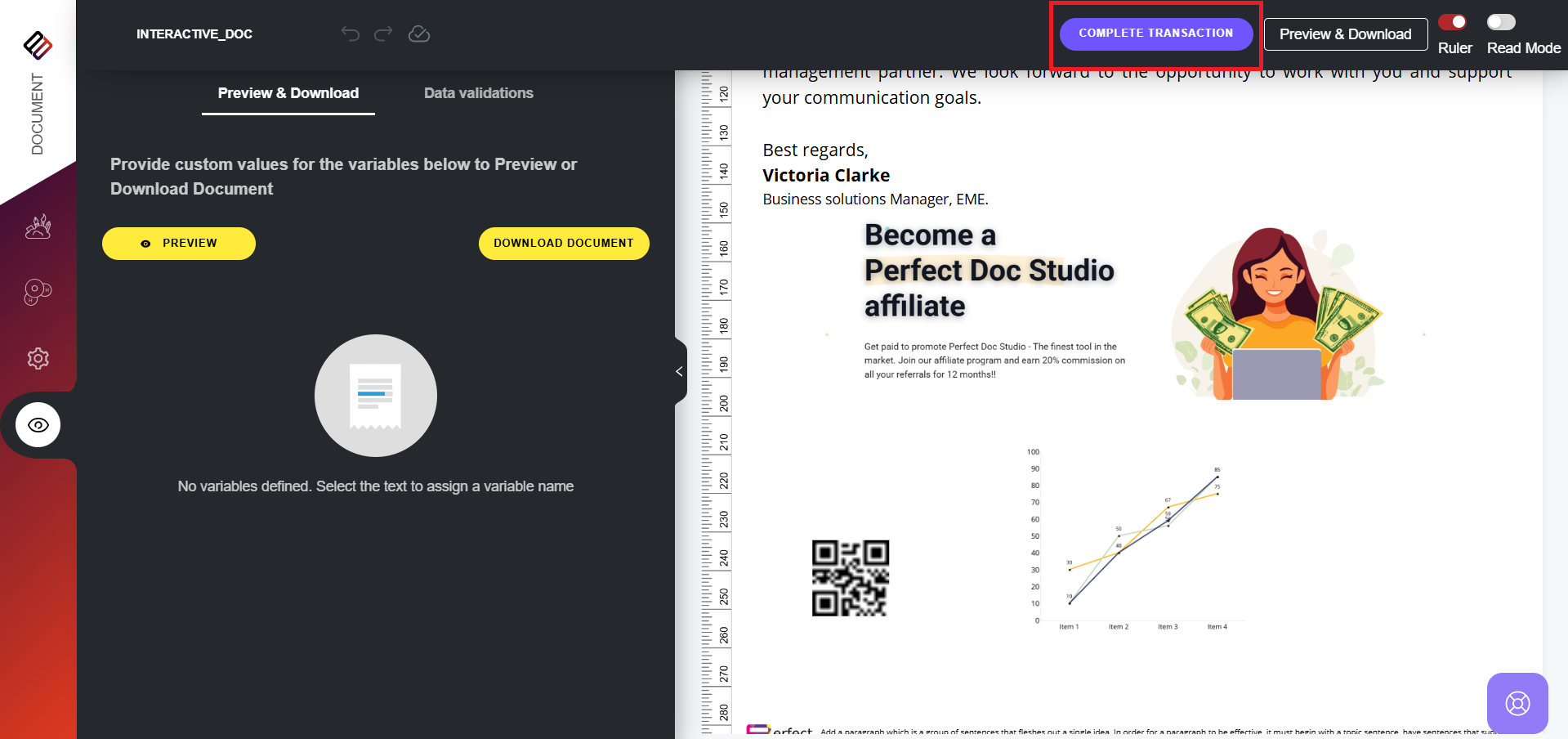
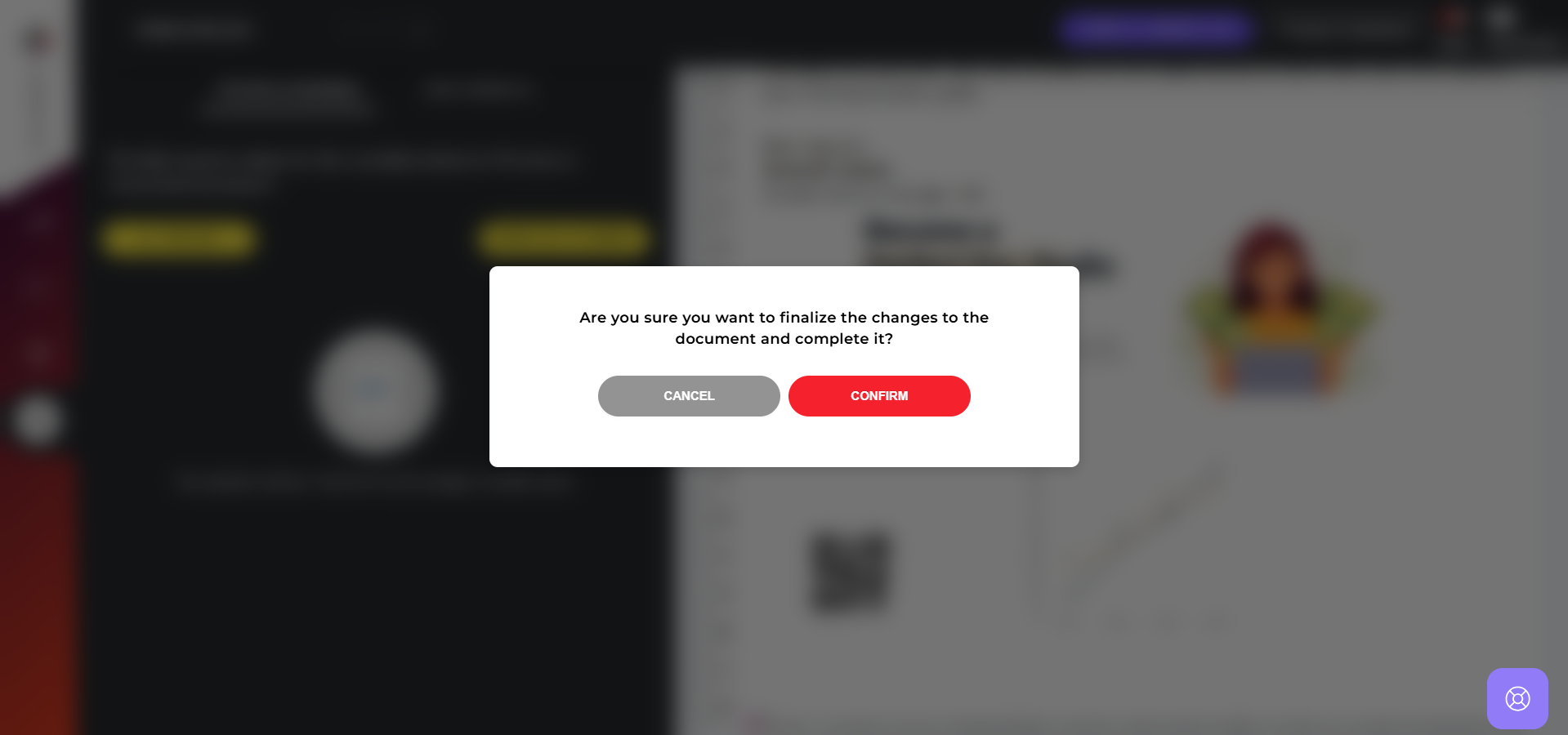
Note: Once you click Complete Transaction, the document will be delivered and automatically removed from the Interactive Documents page. Ensure all changes are finalized before completing the transaction.