Document Settings
The Document Settings section, accessible from the left-hand menu, enables you to manage key aspects of your document, including its display name, tags, PPI, font family and size, document summary, as well as options to make the document accessible or cloneable.
Display Name
This field sets the name of the document when it is exported or printed as a PDF. Display Name is independent of the actual document name and can be used to give your PDF a unique title.
Manage Tags
Use this section to assign tags to your document for easier identification.
Tags can be helpful when performing an advanced search, making it quicker to locate specific documents.
PPI (Pixels Per Inch)
PPI determines the clarity of the document on-screen.
Higher PPI values result in sharper text and images, ideal for high-quality prints, but they may also increase file size.
Font Settings
Use the Font Settings to customize the appearance of your document. Choose a preferred Font Family from the available list to maintain a consistent look, and set the default Font Size that will apply to your document’s text unless specified otherwise.
Document Summary Section:
Use this section to provide a concise summary of your document’s content. This is especially helpful for users relying on screen readers. For example, if you are designing a bank statement, you can highlight key information in a shorter format, making it easier for everyone to understand the essential details.
Accessibility Button:
Toggle this option to enable accessibility features for your document. If this feature is turned off, you will not be able to apply any accessibility adjustments.
Cloanable:
Enable this option to allow on-demand customization of the template through interactive designs, while keeping the original design intact.
Print Quality Settings:
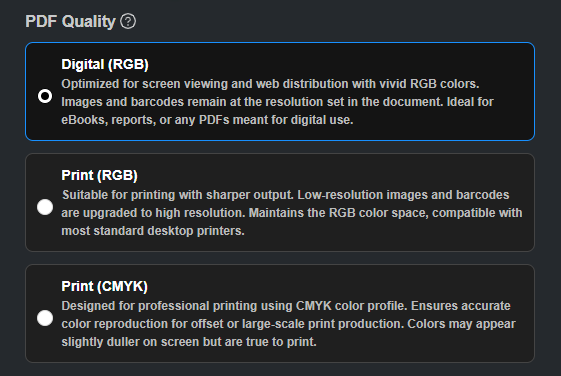
Perfect Doc Studio lets you choose PDF quality to suit
digital viewing or printing, ensuring your documents remain clear and
professional.
Digital (RGB)
Optimized for screen use, Digital (RGB) keeps images and
barcodes at their original resolution while using the RGB color profile. This
ensures vibrant colors and smaller file sizes, ideal for eBooks, online
reports, or any digital distribution.
Print (RGB)
Designed for desktop printing, Print (RGB) sharpens
low-resolution images and barcodes automatically while maintaining RGB colors.
It balances print clarity and compatibility, making it suitable for home or
office printers.
Print (CMYK)
For professional printing, Print (CMYK) converts colors to
the CMYK profile for accurate reproduction. Colors may appear slightly
different on screen but will match printed output, perfect for commercial or
high-quality print projects.
VIDEO DEMO: