How to create a Email Template
To create an Email template, follow these steps:
1. Navigate to the menu option located on the left side of the home screen.
2. Choose "Design System" and select "Email" from the dropdown menu.
3. Hover over the "Email" button and click on the plus icon.
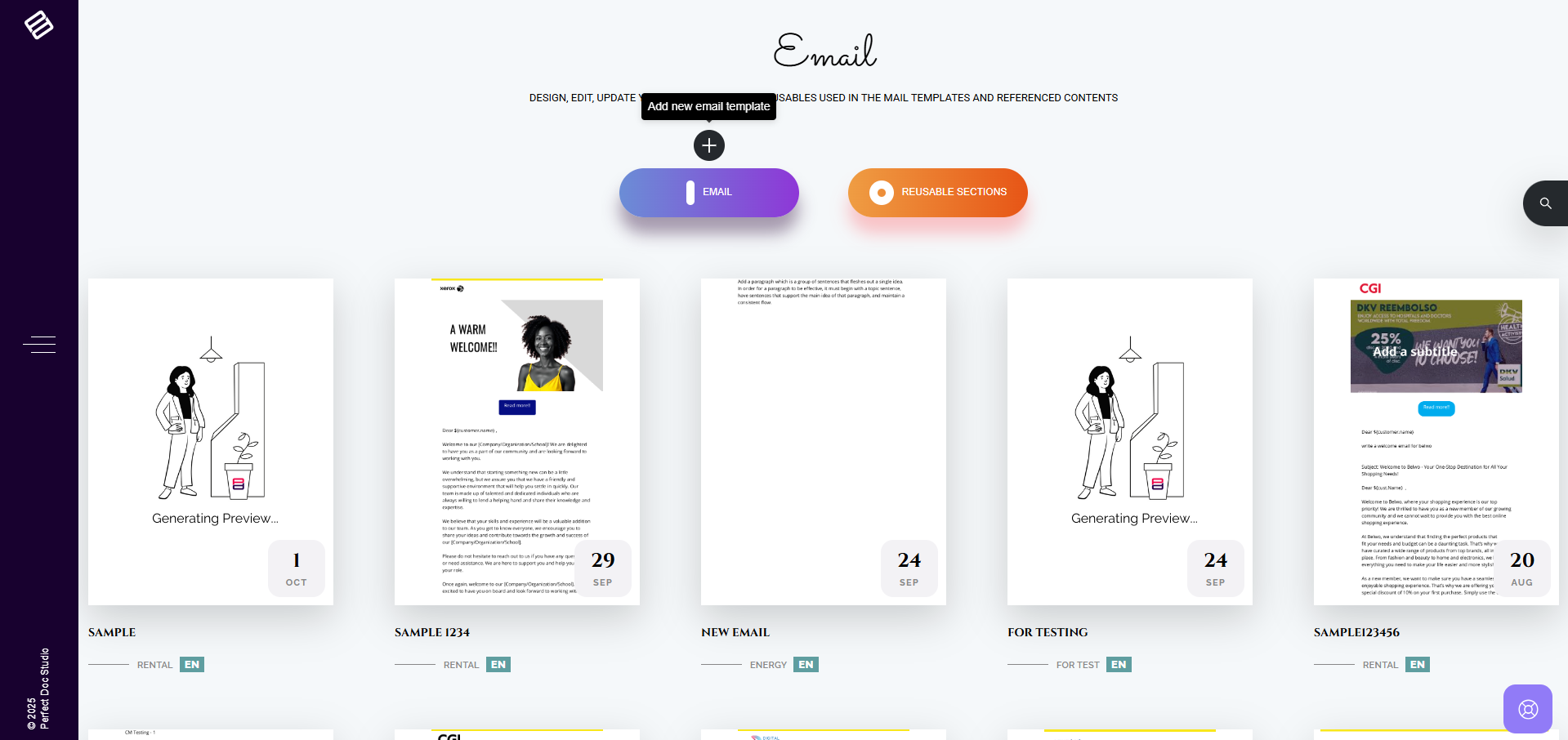
4. A model will appear to create a new Email template.
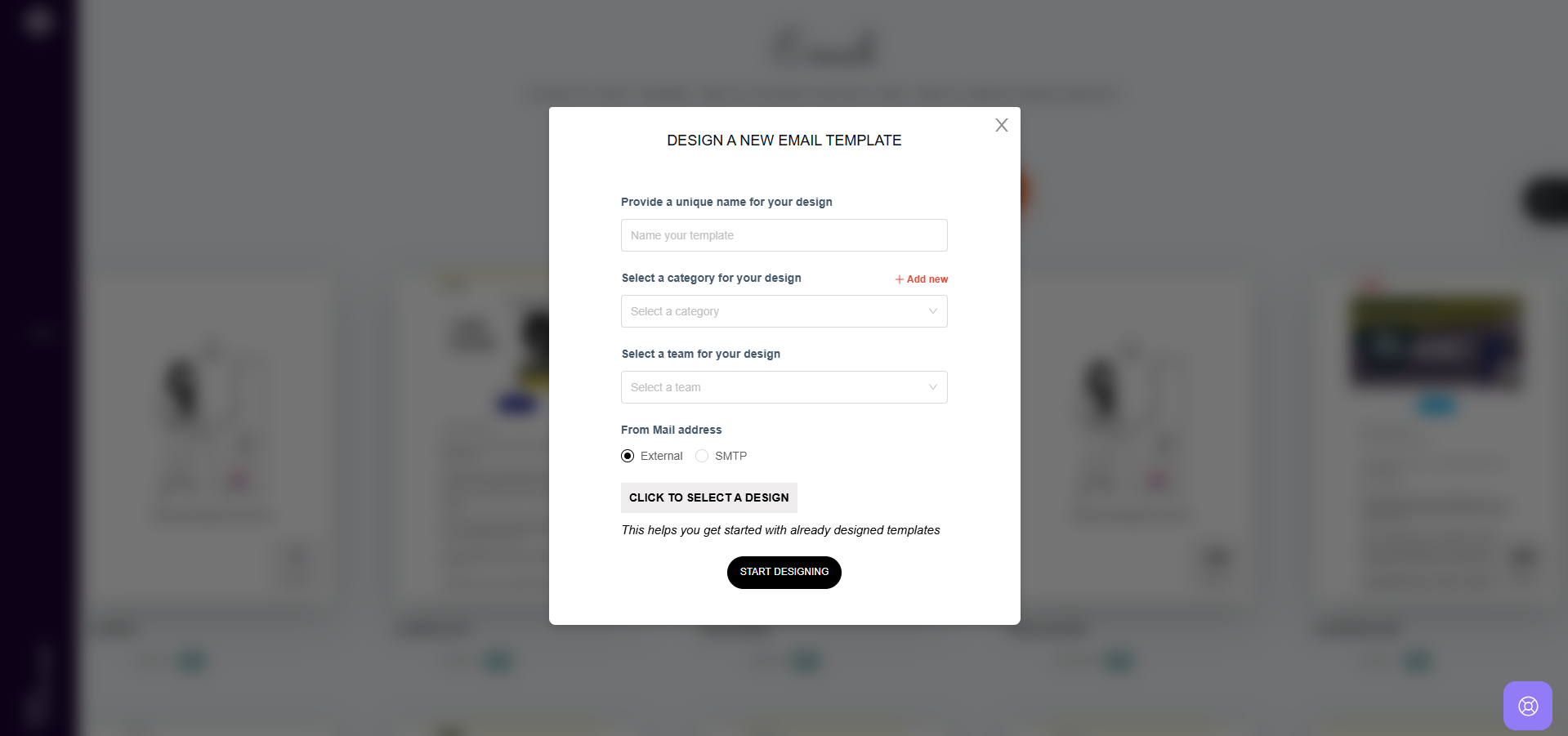
5. Provide a distinctive name for the Email template.
6. Select an existing category or create a new one for the template.
7. Select the team for the template.
8. You can set the from address in two ways, External or SMTP.
External: Uses the default configured external mail gateway set up in Perfect Doc Studio.
SMTP: Uses a configured SMTP server if you want to send from a custom mail server.
9. Using "Click to Select a Design" button you can choose a predesigned template from the Master Template library of Perfect Doc Studio.
10. If you want to create a fresh design, you can skip that button and click on Start Designing.
VIDEO DEMO:
Related Articles
Reusable Sections in an Email Template
Users can easily create reusable sections within an email template by designing specific components, such as headers, and saving them in the system. These sections can then be quickly accessed and utilized in future templates. Reusable sections can ...Organizing Email Templates into folders
Folders serve as a space where each team / user can store their Email designs in distinct folders and arrange them systematically. For creating a folder, follow these steps: 1. Navigate to the Folders option located in the left-hand side menu and ...Publishing and Approval Process in Email Templates
The system has three User roles, each with specific privileges. Administrators can solely view and manage the system configurations. Designers have the authority to create email templates and submit them for testing and approval. Publishers, on the ...How to Call a Function in a Document or Email Template
Function calling in Perfect Doc Studio allows you to dynamically insert values or apply logic within your document templates. Steps to Call a Function 1. Navigate to the location in your document where you want to apply a function and type "@". 2. A ...Deleting an Email Template
To delete an email template, follow these steps: 1. Go to the Emails page. 2. Hover over the email template you wish to delete. 3. Click on the three-dotted icon located in the top-right corner of the template. 4. Select the "Delete" option from the ...