How to add Element-Level Summaries to Your Document?
Users can add element-level summaries for all master elements in the system, such as charts, shapes, lines, tables, and barcodes. Providing descriptive summaries helps screen readers interpret and read complex design documents more effectively.
How to Add Summaries for Master Elements
1. Insert a master element into your document. An Accessibility icon will appear at the top of the element.
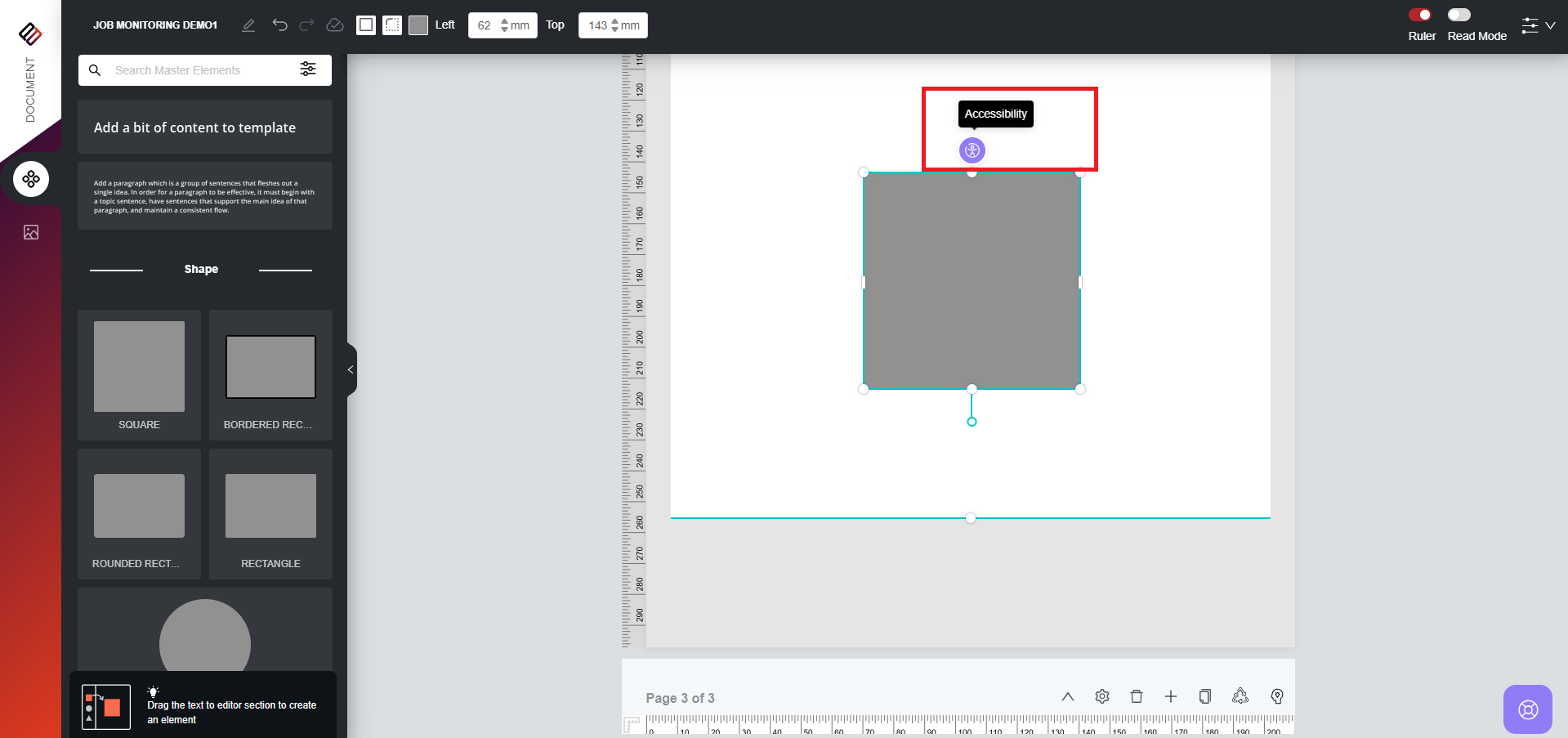
2. Click the icon to open a modal window.
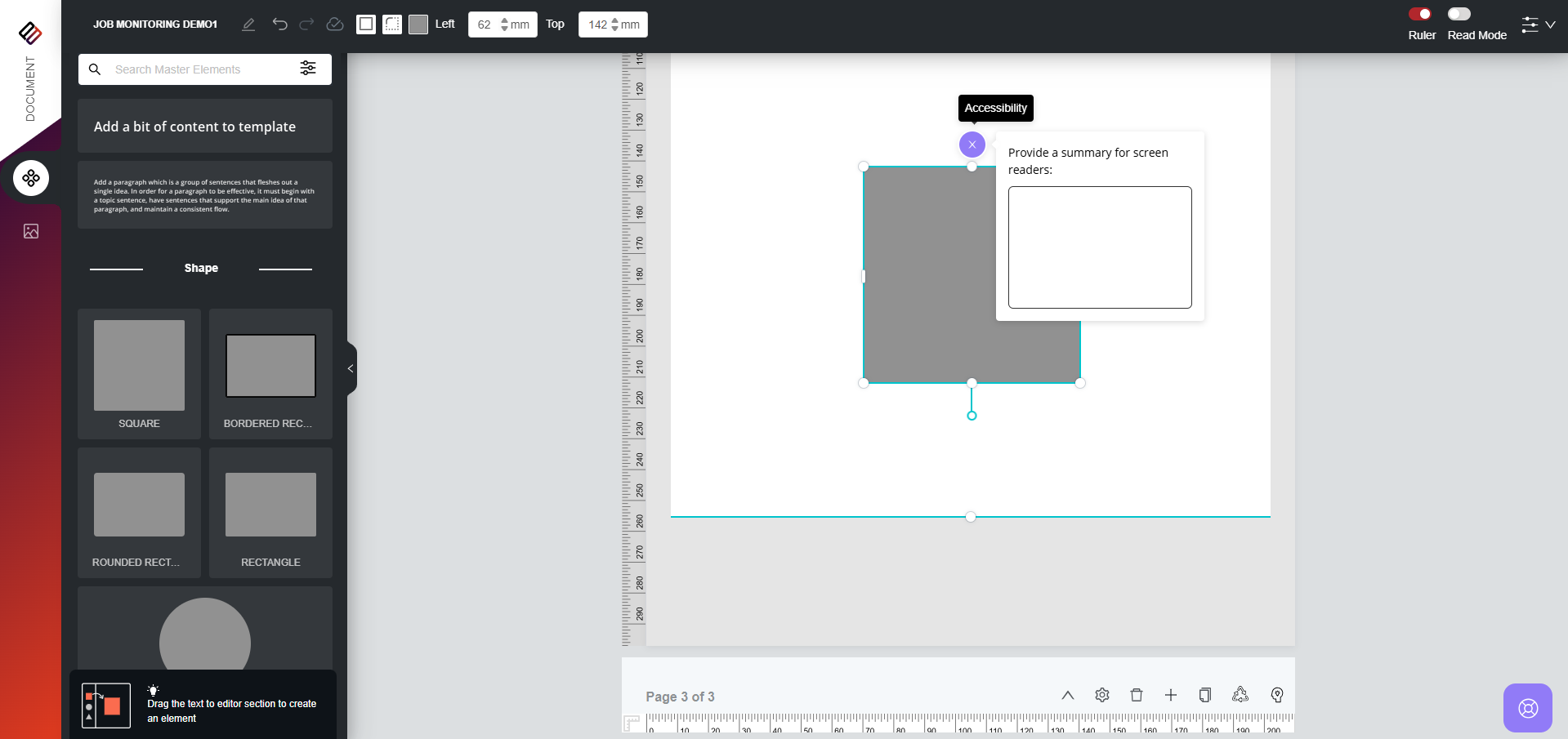
3. Enter a descriptive summary for the element and click Save.
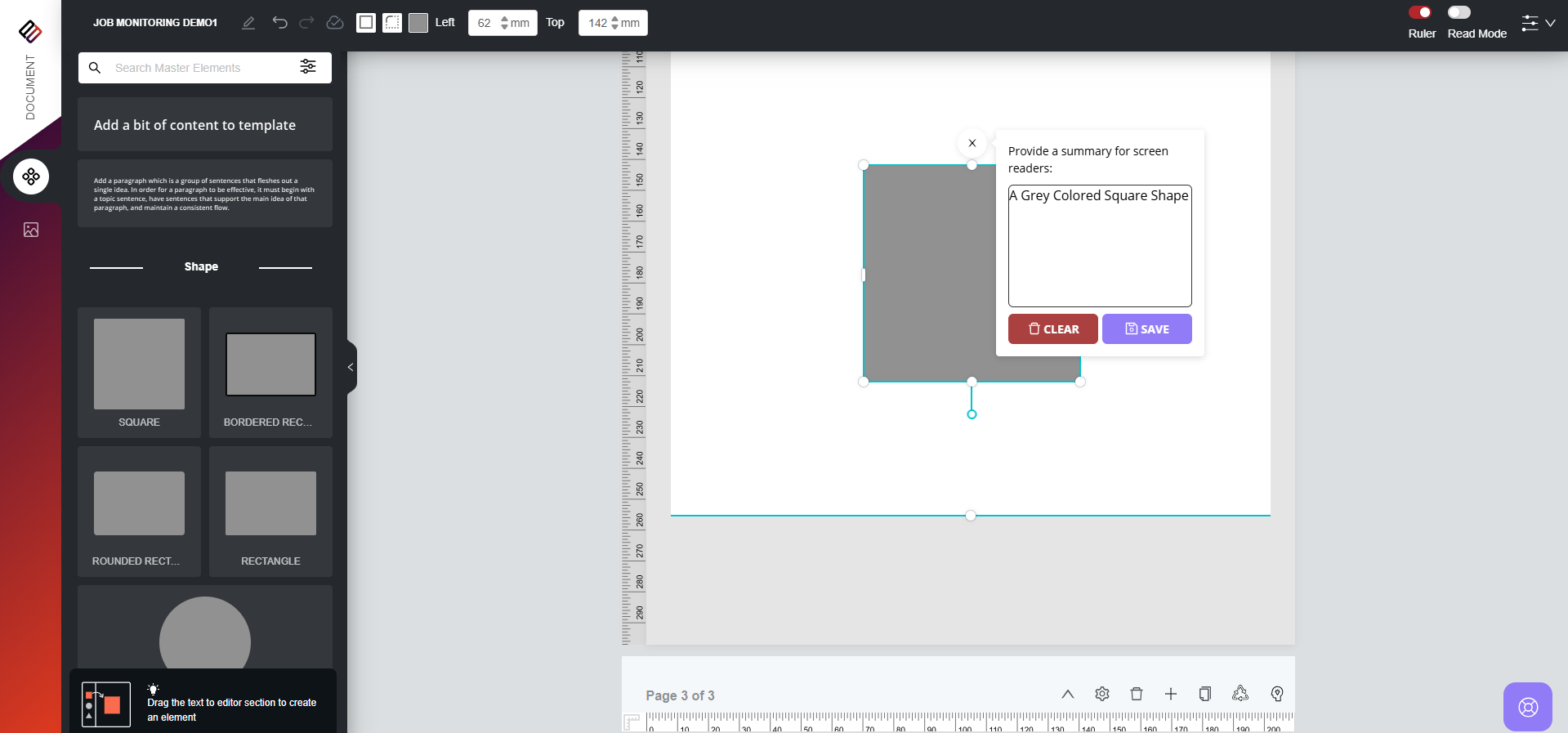
4. The summary will be saved and can be reviewed from the Accessibility Preview section.
1. Insert a master element into your document. An Accessibility icon will appear at the top of the element.
2. Click the icon to open a modal window.
3. Enter a descriptive summary for the element and click Save.
4. The summary will be saved and can be reviewed from the Accessibility Preview section.
For example let us say we have a static table in our document as shown below:
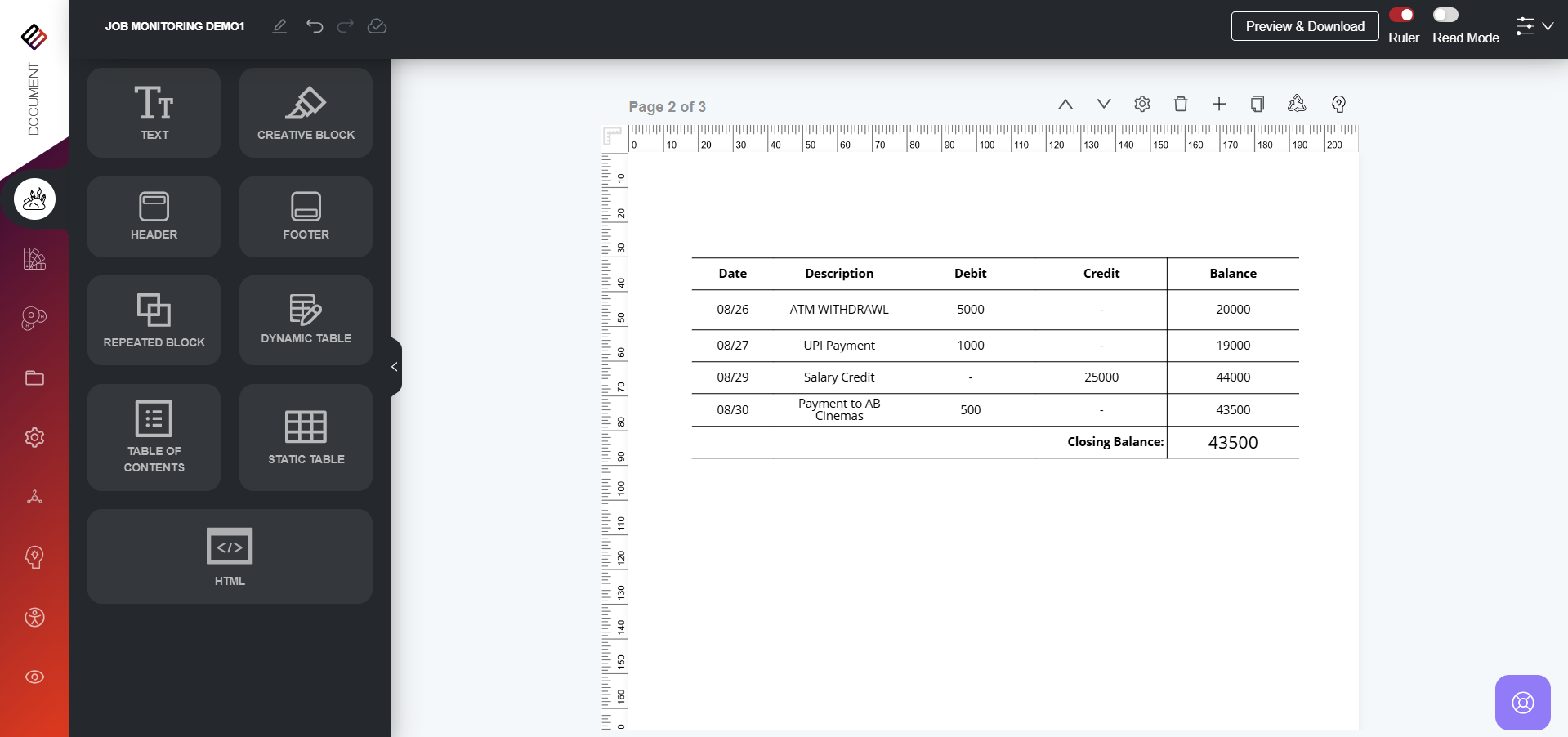
The description is provided as: The account had an opening balance of ₹25,000, received a salary credit of ₹25,000, and after expenses of ₹6,500, the final balance stands at ₹43,500.
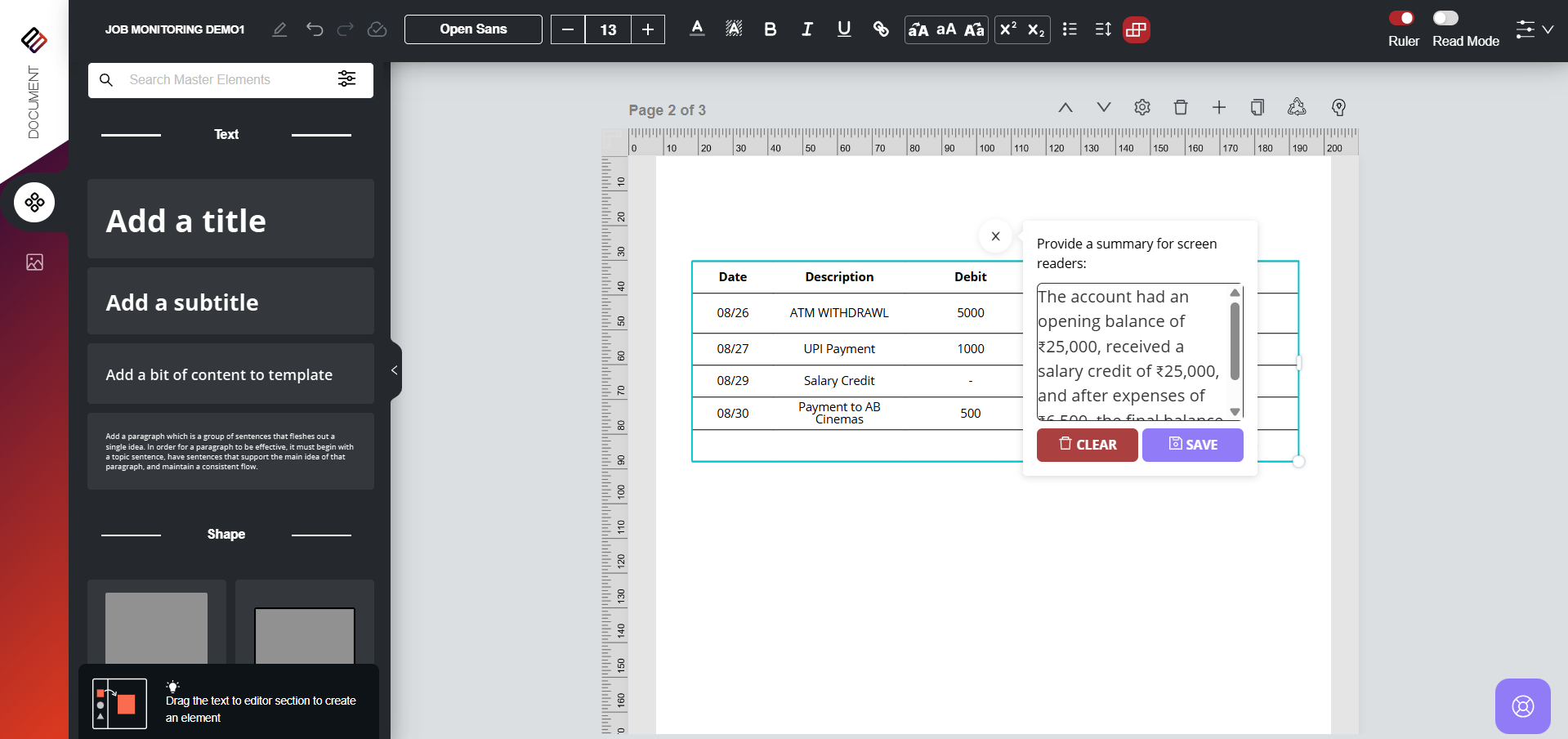
The description is provided as: The account had an opening balance of ₹25,000, received a salary credit of ₹25,000, and after expenses of ₹6,500, the final balance stands at ₹43,500.
For tables, instead of reading each row individually, the screen reader will read the description provided for the table. This allows users to quickly understand its purpose and meaning. The same functionality applies to other master elements such as barcodes, shapes, charts, and lines.
VIDEO DEMO: