How to add Block-Level Summaries to your Document?
Users can add block-level summaries to any block in the design area, such as creative blocks, dynamic tables, static tables, headers, and footers. These summaries help screen readers clearly convey the purpose of each block, making the content easier to understand for users. Let’s look at how to add block-level summaries for different blocks in a design:
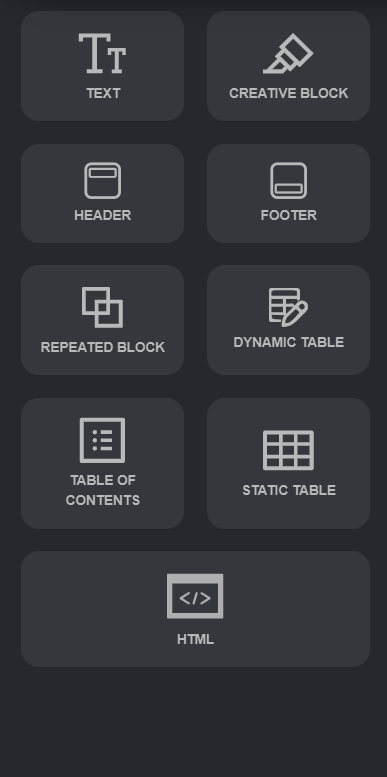
How to Add Summaries for Blocks in a Document Design
Creative Block
1. Insert a creative block into the document design.
2. Hover over the block to view the Settings option on the right side.
3. Click Settings to open the section settings panel on the left-hand side.
4. At the top, select the Accessibility tab and enter the section summary.
5. Click Save. The summary will now be available for screen readers.
6. Similar to the Creative Block, every section added to the design includes a Settings button with an Accessibility tab, where users can provide the Section Summary.
7. For headers and footers, screen readers will skip them unless a summary is provided. When added, the summary for the header will be read at the beginning of the document, and the summary for the footer will be read at the end. Therefore, only add summaries to headers and footers if they contain important information that needs to be conveyed.
VIDEO DEMO: