The Accessibility Validator provides a score that indicates how accessible your document is for all users. This score reflects the overall accessibility level and highlights specific sections that may not meet accessibility standards. Along with the score, the validator also provides actionable suggestions, such as adding alt text for images, improving text color contrast, or providing section summaries. These prompts guide users to the exact sections that need attention, ensuring the document can be made fully accessible.
A score of 80 or above indicates that the document is truly accessible. The scoring levels are categorized as follows:
80 and above - Document is truly accessible
50 to 79 - Some improvements needed
25 to 49 - Low accessibility; requires significant changes
Below 25 - Not accessible; immediate action required
How to use Accessibility Validator?
1. To make your document accessible, the first step is to enable the Accessibility option from the Document Settings menu.
2. At any stage during the design process, you can check your document’s Accessibility Score. Simply go to the left-hand menu and click on “Accessible Design.”
3. As shown in the image below, the Accessibility Score of your document will be displayed.
In the above image, the Accessibility Score of the document is shown as 53%. The application highlights specific areas that need to be fixed in order to make the document fully accessible. These include:
Alternative Text: Alternative text should be provided for elements such as images, charts, and barcodes. By default, when you insert a Chart or a Barcode into your design, Perfect Doc Studio will prompt you to add alternative text for them.
Color Contrast: In some sections, the color contrast is too strong or insufficient, making it difficult for the screen reader to detect and read the text. To fix this, adjust the color to ensure the text is clear and easily readable.
Document Summary: If an overall summary for the document is not provided, this error will appear. Adding a document-level summary resolves the issue.
Section Summary: When individual section summaries are missing, the validator flags them. Adding descriptive summaries for each section ensures accessibility compliance.
Making Your Document Truly Accessible:
Alternative Text:
1. Click on the Alternative Text button to view the sections where Alt Text is missing.
2. Select Provide Alt Text to add a description for the element directly from that panel.
3. Alternatively, you can click Navigate to the Image Section to jump to the element within the document and add the Alt Text there.
4. Once in the section, click on the Accessibility Symbol above the element, enter the Alt Text, and click Save
.
5. With the Alternative Text added, the Accessibility Score has now increased to 67%.
Document Summary:
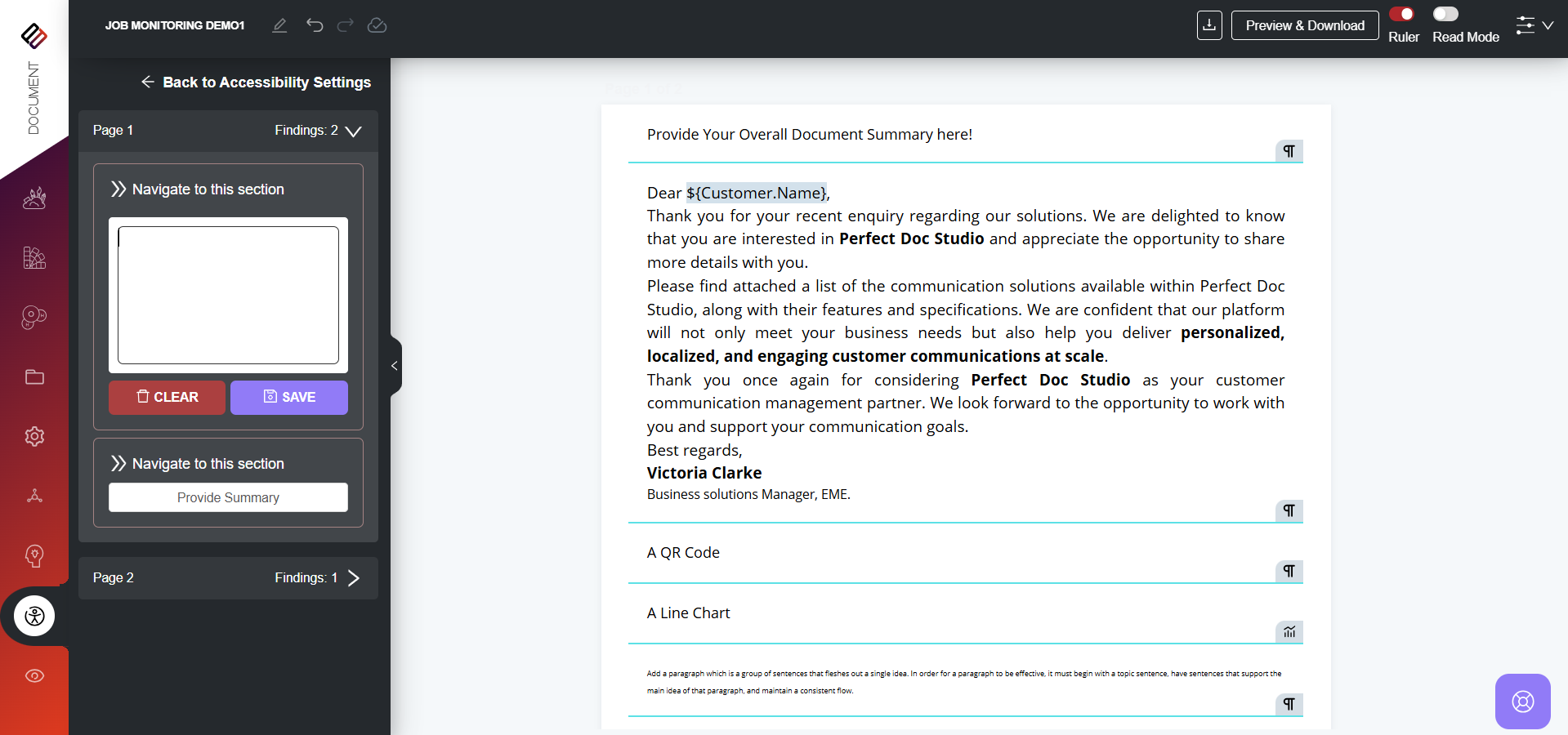
1. Click on Document Summary to open the panel where you can enter an overall summary for the document.
2. Type in the summary and click Save.
3. Once the Document Summary is added, the Accessibility Score has improved to 73%.
Section Summary:
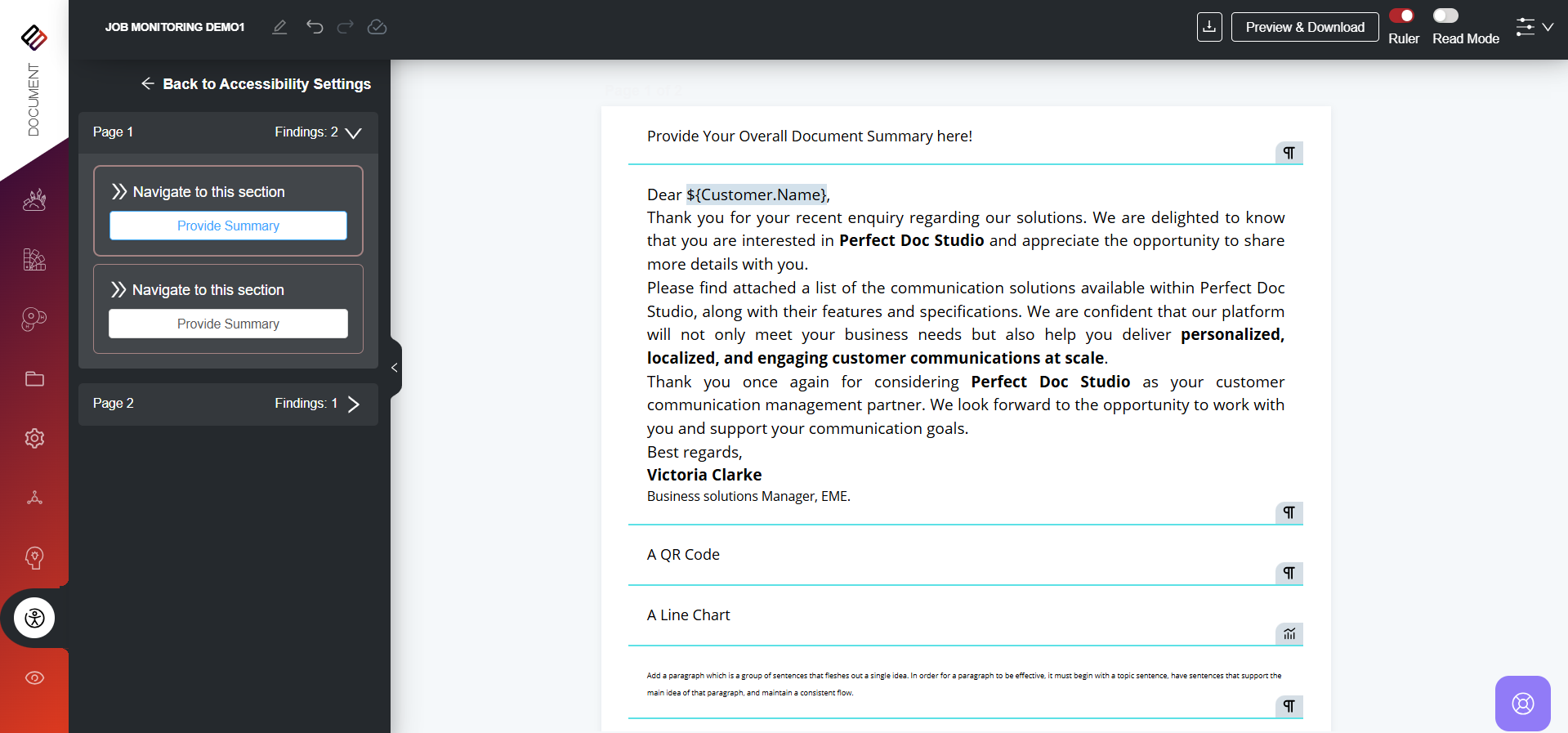
1. Similar to Document Summary and Alternative Text, click on Section Summaries to open a panel that lists all sections without a summary, organized page by page.
2. You can either provide the summary directly by clicking the Provide Summary button, or navigate to the specific section and add the summary there.
3. When you click on Navigate to this section, the corresponding section in the design area will be highlighted, allowing you to add a summary directly there.
Our document is now truly accessible after implementing all the suggestions provided by the Accessibility Validator. This ensures that screen readers can easily read and interpret the content, making the document more user-friendly and accessible to all users.
In the below order, the screen reader will read the document for users. It will first read the Document Summary, followed by the main document content. Similarly, for elements such as QR Codes and Tables, it will read only their respective summaries before proceeding further.
The Accessibility Validator in Perfect Doc Studio is a built-in tool that checks whether a designed document is compatible with screen readers. It provides an accessibility score, where a higher score indicates that the document is more accessible ...
A fully accessible document is a digital file (like a PDF, Word, Excel, or PowerPoint) that has been created in a way that all people, including those with disabilities, can use and understand it effectively, especially when using assistive ...
Before making a document accessible, users must first enable the Accessibility option in the Document Settings section. Without enabling this option, the accessible design features will not be available. Once enabled, users can make their documents ...
Creating content is now simplified with the ability to generate various types of content effortlessly using AI. Automated copywriting is a standout feature that enables the system to automatically generate content within seconds. Simply input the ...
Users can add block-level summaries to any block in the design area, such as creative blocks, dynamic tables, static tables, headers, and footers. These summaries help screen readers clearly convey the purpose of each block, making the content easier ...