Creating a Standard Batch Job in Smart Batch Studio
Follow the below steps to create and process a Standard Batch Job in Smart Batch Studio:
1. Navigate to the Transactions menu & Click on Smart Batch Studio.
2. From the top-right corner, click New Batch and select Batch Jobs.
3. Choose the required Batch Job Type:
- Quick
- Form
- Standard
4. Select the required channel for the batch:
- Print
- Email
- Multichannel
5. Select Multichannel to process the batch through both Print and Email channels. Click Save & Proceed.
 Note: When selecting the Multichannel option, ensure that both Document and Email designs are configured and published within the same template.
6. The list of Published Templates will be displayed in the Next Page.
9. Select the required template. You can also search for the template using the template name.
10. Click Next.
11. In the next step, download the sample Data File template for providing input data.
Smart Batch Studio supports the following data file formats:
- Excel
- JSON
- XML
- CSV
- TXT (Pipe Delimited)
- TXT (Tab Delimited)
Populate the data file with the required data.
12. Upload the completed data file.
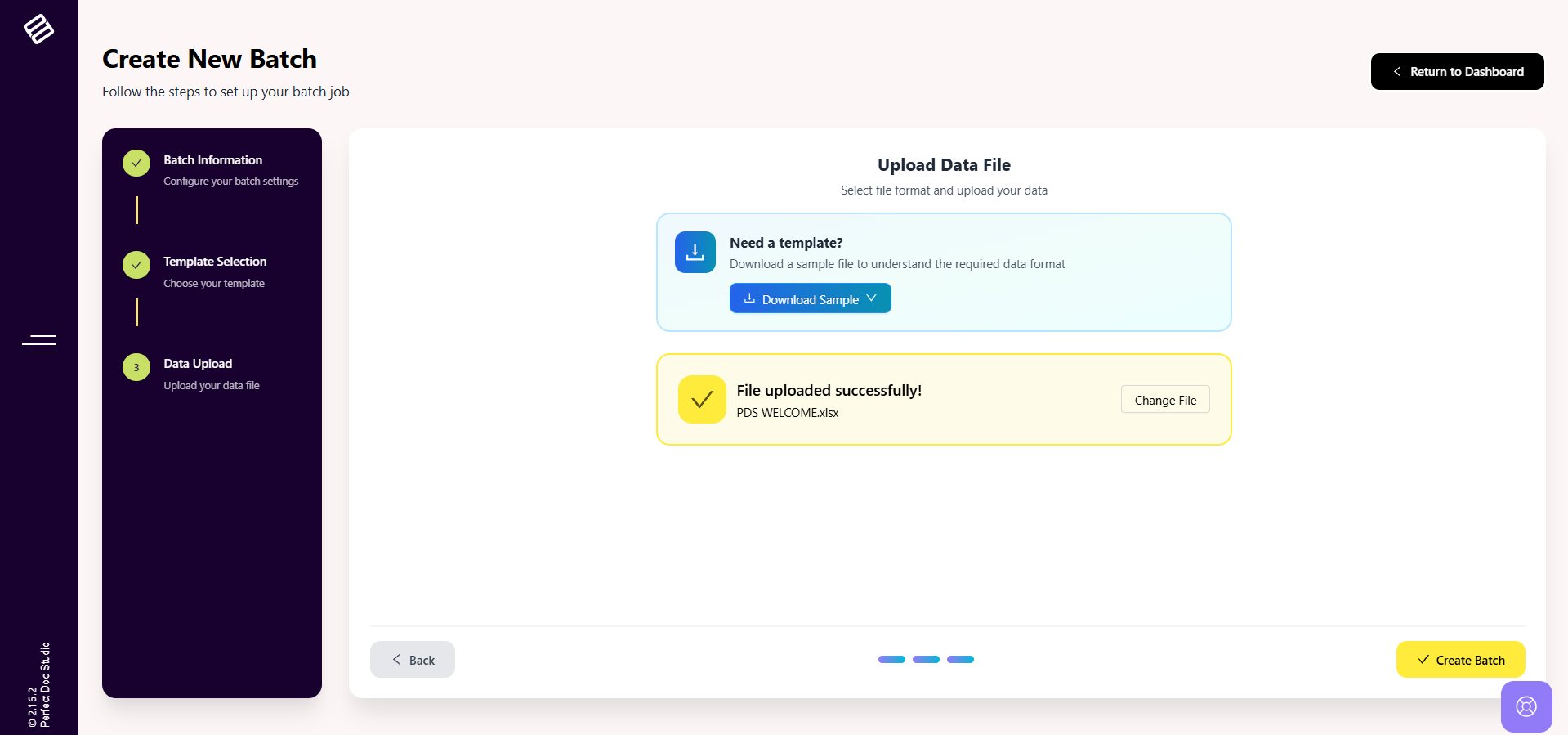
13. Click Proceed to Proofing.
14. In the next step, you will be redirected to the Proofing Screen, which acts as the Pre-Approval stage of the batch process.
- This screen provides a preview of the Documents and Emails that will be delivered to customers.
- Users can review both Document Proofs and Email Proofs before proceeding further.
- Search filters are available to locate specific Documents or Emails within the batch.
- By default, the system displays:
- First 5 Proofs
- Last 5 Proofs
for both Documents and Emails.
15. Once the proofing process is completed, click the Approve Proofs button to proceed with the batch processing.
16. Once the Proofs are approved, click NEXT to open the Batch Processing Modal for configuring and processing the batch.
To learn more about the Batch Processing Modal and its available processing options in Smart Batch Studio, click HERE.